Image Compressor

Compress, resize, and convert images for free. Your images stay in your browser.

Loading the image compressor…

How to use the image compressor

Use the default settings to compress your images, or choose a new size or format before downloading.

  1. Choose your images

    Select Choose images or drop up to 20 PNG, JPEG, or WebP files.

  2. Adjust the output

    Use Output settings to change format, dimensions, or quality, then select Done.

  3. Download your files

    Download individual results or save a batch with Download All ZIP.

See what a smaller file looks like.

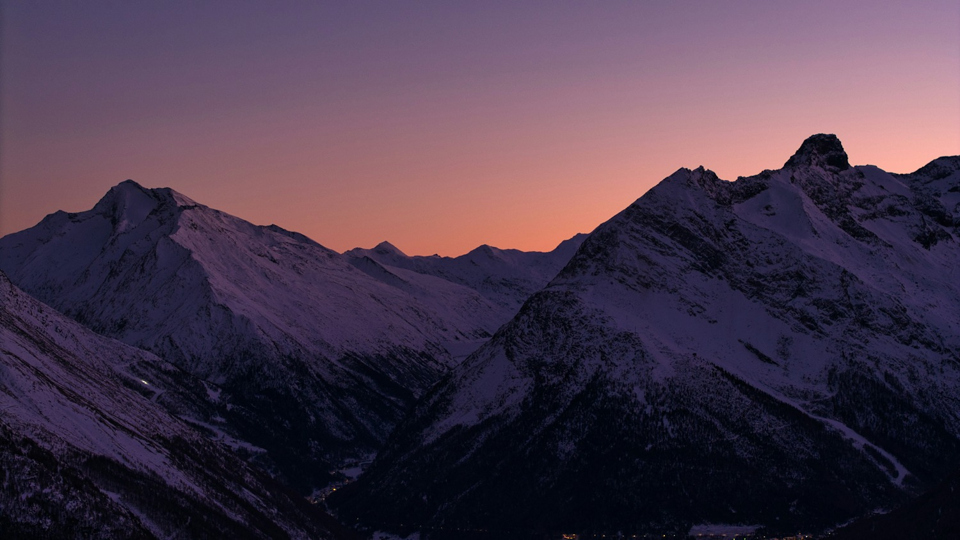
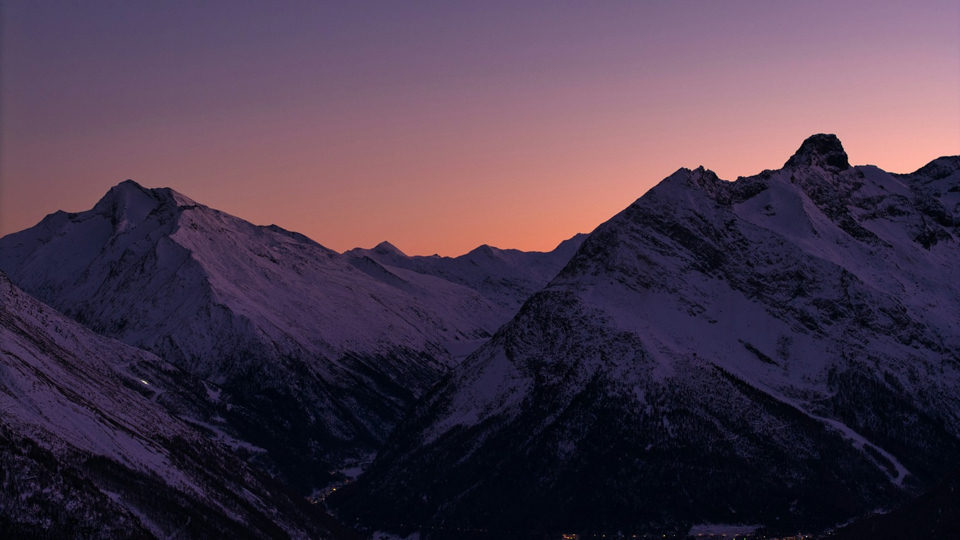
This sample was compressed at its original dimensions. Move the slider to compare the original and compressed images.

Original246.4 KB
Compressed73.0 KB
Saved70%
Sample JPG · Balanced compression · Photo by Daniel R. on Unsplash

Compress, resize, and convert images

Use any of these options on its own or combine them in one batch.

For example, turn a folder of full-size JPEGs into smaller WebP images for your website.

Compress images

Reduce file size for faster page loads or easier sharing.

Keep the original format and dimensions when all you need is a smaller file.

In Quality, start with Balanced for photos or Lossless for PNGs. Try Stronger PNG if you can trade some color detail for a smaller file.

Resize by width

Make images fit a website banner, product listing, or thumbnail.

The tool keeps the original proportions and leaves smaller images at their current size.

In Dimensions, choose Hero (1,920 px), Content (1,200 px), Thumbnail (400 px), or set your own maximum width.

Convert image formats

Save photos as WebP for the web, export a transparent PNG, or create a JPEG for a service that requires it.

In Format, select one or more formats to export multiple versions of each image in the same batch.
Which image format should you use?

Start with a still PNG, JPEG (JPG), or WebP image. Choose an export format based on where the image will be used.

FormatWhen to choose it
PNGLogos, screenshots, and graphics with sharp edges or transparent backgrounds.
JPEGPhotos for email, documents, and services that require JPG. Transparent areas become white when converted to JPEG.
WebPPhotos and graphics for websites where smaller files matter, including images with transparency.
AVIFWeb photos where file size matters and the destination supports AVIF.
JPEG XLWorkflows that support JPEG XL. Check that the app or viewer you plan to use can open it.

AVIF and JPEG XL are export options. Choose Keep format to keep the file type you started with.

Image optimization questions

How many images can I process at once?

Choose up to 20 still PNG, JPEG, or WebP files, with a limit of 20 MiB per file and 100 MiB per batch. Download the results individually or use Download All ZIP.

Do my images get uploaded?

Your browser reads, processes, and downloads the images on your device. There is no upload step or account required.

Will compressing an image affect its quality?

Lossless PNG keeps the original pixels. Stronger PNG reduces colors to save more space while keeping transparency. For JPG and WebP, choose Higher quality to preserve more detail or Smaller file for more compression.

Why did my file stay the same size?

Some images are already optimized. With Keep format and Original dimensions selected, the tool can return the original when it finds no smaller result. A requested conversion may produce a larger file.

How does image compression help my website?

Smaller images reduce how much data a page has to load. The benefit is most noticeable on image-heavy pages and slower connections. Size images to their display width as well, especially for mobile visitors.

Zenogram Digital Marketing

Want a faster website?

Get a free review of your website and see where you can improve performance and search visibility.

Request a free audit